How to Install Odoo Industry Packages (Locally and on SaaS)
Odoo Industry packages look like standard add-ons: they have manifests, XML files, static assets, and familiar module directories. But you should not install them with odoo-bin -i.
Industry packages are imported data modules. Odoo installs them through base_import_module, not through the standard module graph.
This article covers three scenarios:
- Local development — install an Industry from the source repositories.
- Odoo Online / Odoo.sh — install an Industry from Odoo's official catalog.
- Custom Industries — upload an Industry that is not available in the catalog.
For the technical explanation behind this architecture, see Why Odoo Industries Are Data, Not Code.
Prerequisites
Before installing an Industry:
- Use the same Odoo major version across Community, Enterprise, and Industry sources.
- Make sure the database has access to the required Enterprise applications.
- Include
design-themeswhen required by the Industry. - For custom Industries on SaaS, make sure Import Module is available.
Installing an Odoo Industry locally
Workspace layout
run_industry.sh uses paths relative to the current working directory. Use this structure:
workspace/
├── odoo/
│   └── odoo-bin
├── enterprise/
├── industry/
│   ├── run_industry.sh
│   ├── utils.py
│   ├── base_industry_data/
│   ├── construction/
│   └── construction_developer/
└── design-themes/
Symbolic links are fine:
enterprise -> /home/dd/git/oe/20.0/
industry   -> /home/dd/git/industry/20.0/
odoo       -> /home/dd/git/odoo/20.0/
All repositories must use compatible revisions from the same Odoo series.
Run the installer
To create a clean database without demo data:
./industry/run_industry.sh -n construction_developer -i -h
With demo data:
./industry/run_industry.sh -n construction_developer -d -h
The flags belong to run_industry.sh, not odoo-bin:
| Flag | Meaning |
|---|---|
-i |
Import without demo data |
-d |
Import with demo data |
-h |
Rebuild the dependency and target databases |
-r |
Reset the target while keeping the dependency database |
For construction_developer, the script:
- Creates or resets
dep-construction_developer. - Installs the standard Odoo and Enterprise dependencies.
- Copies the database to
construction_developer. - Builds the Industry ZIP.
- Includes
base_industry_data,construction, andconstruction_developer. - Imports the ZIP with
ir.module.module._import_zipfile(...). - Starts Odoo without adding
industry/to the add-ons path.
Do not replace this process with:
odoo-bin -i construction_developer
That uses the standard filesystem module loader, which is not how Industry data modules are designed to be installed.
Installing on Odoo Online or Odoo.sh
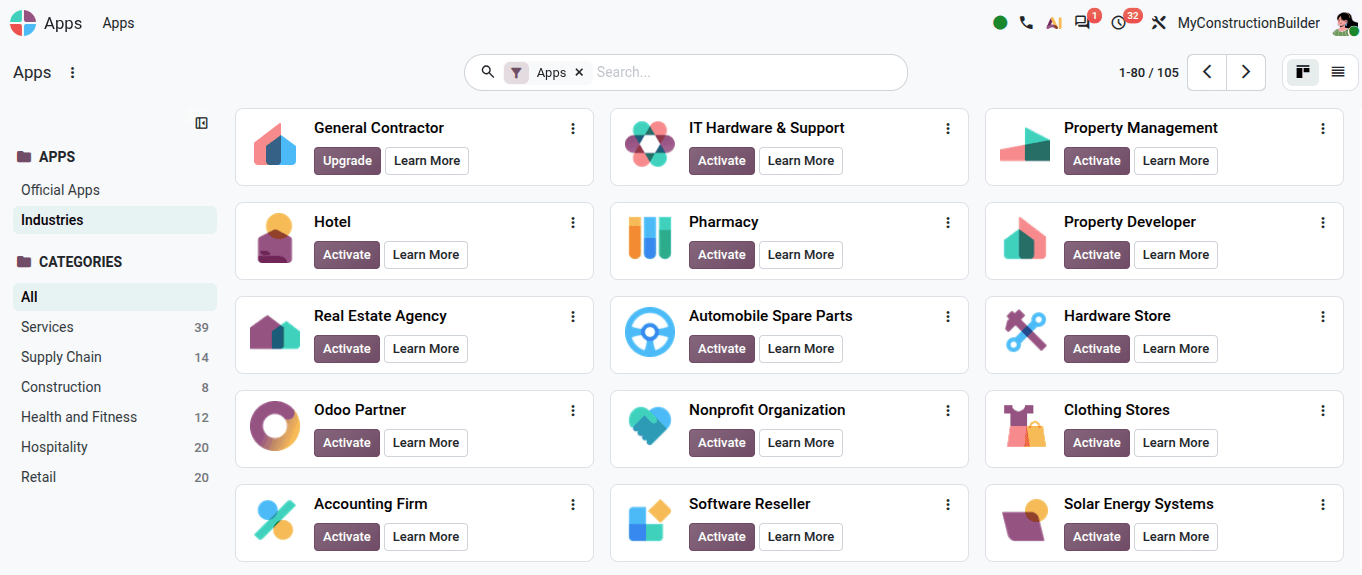
If the Industry is available in Odoo's official catalog, installation is simple:
- Open the database.
- Enable developer mode.
- Find the Industry in the Industries selector or Apps.
- Click Install.
Odoo downloads and imports the package automatically. You do not need a ZIP, filesystem access, or a server restart.
In developer mode, you can also reinitialize the database when installing an Industry. Use this when you want a fresh database configured with the Industry and its demo data.
Installing a custom Industry
If you created or modified an Industry that is not in Odoo's catalog, build a ZIP and import it through Apps → Import Module.
Build the ZIP
Use IndustryUtils.get_zip() instead of manually zipping the module:
python3 - <<'PY'
import sys
from pathlib import Path

sys.path.append("industry")
from utils import IndustryUtils

archive = IndustryUtils().get_zip("construction_developer")
output = Path("/tmp/construction_developer.zip")
output.write_bytes(archive.getvalue())
print(output)
PY
This includes the required Industry dependencies automatically.
Check the ZIP structure
Modules must be directly at the ZIP root:
construction_developer.zip
├── base_industry_data/
│   └── __manifest__.py
├── construction/
│   └── __manifest__.py
└── construction_developer/
    ├── __manifest__.py
    ├── data/
    ├── features/
    └── static/
Do not add an extra parent directory:
construction_developer.zip
└── industry-20.0/
    └── construction_developer/
        └── __manifest__.py
The importer expects to find the module manifests at the ZIP root.
Import the ZIP
- Enable developer mode.
- Go to Apps → Import Module.
- Upload the ZIP.
- Enable Load demo data if required.
- Run the import.
- Refresh the web client.
Do not manually change the module's imported flag. The importer handles it.
Verify the installation
If you have database access:
SELECT name, state, imported, latest_version
FROM ir_module_module
WHERE name IN (
    'base_industry_data',
    'construction',
    'construction_developer'
);
The modules should be installed and marked as imported.
You can also check known external IDs:
construction_developer.action_open_bom
construction_developer.field_sale_order_line_x_product_bom_template_id
construction_developer.view_order_form_inherit
If an expected external ID is missing, check whether the import failed or whether you are using a different Industry revision.
Common installation problems
Installing with odoo-bin -i
Adding the Industry repository to --addons-path and installing it as a standard module can produce errors such as:
Field "x_bom_cost" does not exist in model "sale.order.line"
Industry packages can define Studio-style x_ fields as imported database records. The normal module loader can validate dependent views before those fields are available.
Use the Industry import mechanism instead.
Using -u all after a failed installation
-u upgrades installed modules. It does not retry a module whose installation failed and rolled back.
Check the module's state first.
Setting imported manually
Imported modules are excluded from normal filesystem loading:
('imported', '=', False)
Changing the flag manually does not import XML or create fields. It can simply prevent the normal loader from seeing the module.
Uploading only the final Industry module
An Industry can depend on other Industry data modules.
For example:
base_industry_data
construction
construction_developer
Use IndustryUtils.get_zip() to include the complete dependency chain.
Different results between environments
If the same Industry behaves differently locally and on SaaS, compare:
- Odoo major version
- Community revision
- Enterprise revision
- Industry revision
design-themesrevision- Manifest version
- Demo-data setting
- Expected external IDs
run_industry.sh uses your current local checkout. Odoo's catalog may contain a different published Industry build.
A missing button does not always mean the installation failed
Industry UI elements can have visibility conditions.
For example, construction_developer uses:
invisible="not x_product_bom_template_id"
The BOM action therefore appears only when the selected product has a BOM template.
If the module and view are installed but the button is missing, check x_product_bom_template_id before troubleshooting the installation.
Frequently Asked Questions
Can I install an Odoo Industry with odoo-bin -i?
No, not as a standard filesystem module. Use run_industry.sh for local development, Odoo's catalog for official Industries, or Import Module for a custom Industry.
See Why Odoo Industries Are Data, Not Code for the technical reason.
How do I install an Odoo Industry locally?
Use run_industry.sh from the Industry repository:
./industry/run_industry.sh -n construction_developer -i -h
Use compatible Community, Enterprise, Industry, and required theme sources from the same Odoo version.
Do I need a ZIP for Odoo Online or Odoo.sh?
Not for an official catalog Industry. Select the Industry and install it directly.
You only need to upload a ZIP for a custom or modified Industry that is not available in the catalog.
Can I create and install my own Odoo Industry?
Yes. Build the package with IndustryUtils.get_zip() and install the resulting archive through Apps → Import Module.
Using IndustryUtils ensures the ZIP contains the required Industry dependencies and directory structure.
Why does an Industry work locally but not on Odoo Online or Odoo.sh?
First check that both environments are using equivalent versions.
Your local installation uses your current source checkout, while Odoo's catalog can contain a different published build. Compare the Odoo, Enterprise, Industry, and theme revisions, as well as the demo-data setting and expected external IDs.