
Integrate Amazon Marketplace with Odoo
Out Of the Box Odoo Amazon Connector
Amazon Marketplace is one of the world’s largest eCommerce platforms, providing businesses with unmatched sales opportunities. However, managing inventory, orders, and fulfillment across multiple systems can quickly become overwhelming.
Odoo’s Amazon Connector eliminates these challenges by seamlessly integrating Amazon with your ERP, automating workflows, synchronizing data, and improving operational efficiency. With this integration, businesses can reduce manual tasks, prevent inventory mismatches, and streamline order processing—all within Odoo.
In this guide, we’ll explore how Odoo’s Amazon Connector works, its key features, and how it simplifies Amazon Marketplace management. We’ll also cover essential considerations for sellers looking to optimize their operations and scale effectively.
Amazon Connector Configuration in Odoo
Odoo allows businesses to register and manage an Amazon Seller account directly in the system, ensuring smooth integration. Before proceeding, a paid Amazon Seller account is required.
1. Setting Up a Paid Amazon Seller Account
To create and set up an Amazon Seller account:
- Log in to Amazon and navigate to Account & Lists.
- Select Start a Selling Account and complete the sign-up process.
- Once registered, proceed with the steps below to link your Amazon Seller account with Odoo.
2. Connecting Amazon Seller Account to Odoo
Enable Amazon Sync:
- Go to Sales app ‣ Configuration ‣ Settings ‣ Connectors.
- Enable the Amazon Sync feature and click Save.

Link the Amazon Account:
- Navigate to Sales app ‣ Configuration ‣ Settings ‣ Connectors ‣ Amazon Accounts.
- Click New, enter the account name, and select the Home Marketplace.

- Click Save, then Link with Amazon.

Authenticate and Synchronize:
- Log in to Amazon Seller Central and authorize Odoo to access your data.
- Once confirmed, Odoo syncs available marketplaces, which can be managed under the Marketplaces tab.

Product Matching & Offer Pairing:
- Odoo matches Amazon orders with products in the database using:
- Internal Reference (Odoo’s unique product identifier).
- Amazon SKU (for marketplace items).
- Amazon Shipping Code (for delivery charges).
- Amazon Gift Wrapping Code (for gift wrap charges).
- If a match isn’t found, Odoo assigns default products:
- Amazon Sale (for unidentified SKUs or gift wrapping codes).
- Amazon Shipping (for unidentified shipping codes).
- Odoo matches Amazon orders with products in the database using:
Manual Product Pairing (if needed):
- Modify the product or SKU in an offer.
- Create a new offer manually if not generated automatically.
- Useful when the Internal Reference doesn’t match the SKU or the product is sold under different conditions.
3. Product Tax Configuration
To ensure tax compliance and accurate reporting, taxes applied to Amazon sales orders in Odoo are determined as follows:
- Taxes are set on the product in Odoo or determined by the fiscal position.
- Users should verify that tax settings in Odoo match their Amazon tax setup to prevent discrepancies.
- Amazon may apply different tax rates than those configured in Odoo.
- Order totals may slightly differ between Amazon and Odoo due to rounding variations.
- Minor differences can be adjusted using a write-off when reconciling payments.
4. Adding a New Marketplace
Odoo supports multiple Amazon marketplaces, allowing businesses to expand their reach. To add a new marketplace:
Create a New Marketplace Record:
- Navigate to Sales app ‣ Configuration ‣ Settings ‣ Connectors ‣ Amazon Sync ‣ Amazon Marketplaces.
- Click New and enter the Marketplace ID in the API Identifier field.
- Select the Amazon Region based on Amazon’s documentation.
- Enter the Seller Central URL as provided in Amazon’s documentation.
- Name the record as Amazon.
(e.g., Amazon.se for Sweden).
Update Amazon Account Configuration:
- Go to Sales app ‣ Configuration ‣ Settings ‣ Connectors ‣ Amazon Sync ‣ Amazon Accounts.
- Select the Amazon account where the new marketplace will be added.
- Open the Marketplaces tab and click Update Available Marketplaces.
⚠ Note: If the new marketplace does not appear, it may be incompatible or unavailable for the seller account.
Key Features of the Amazon Connector
The Amazon Connector provides a comprehensive set of features that help sellers manage orders, inventory, and shipping efficiently.
✅ Automated Order Synchronization – Syncs all confirmed orders from Amazon to Odoo, whether they are FBA (Fulfilled by Amazon) or FBM (Fulfilled by Merchant).
✅ Detailed Order Data Sync – Each synchronized order includes:
- Product details (name, description, quantity).
- Shipping costs, when applicable.
- Gift wrapping charges, if selected by the customer.
✅ Customer Record Management – Automatically creates missing customer records in Odoo, supporting both contacts and delivery addresses.
✅ Shipment Confirmation – For FBM orders, Odoo notifies Amazon when shipments are confirmed, ensuring timely payment processing.
✅ Real-Time Stock Synchronization – Odoo updates available stock levels on Amazon for FBM products, preventing overselling and stock discrepancies.
✅ Multi-Account & Multi-Marketplace Support – Manage multiple Amazon seller accounts and sell across multiple marketplaces under a single Odoo instance.
Understanding FBA vs. FBM Order Handling in Odoo
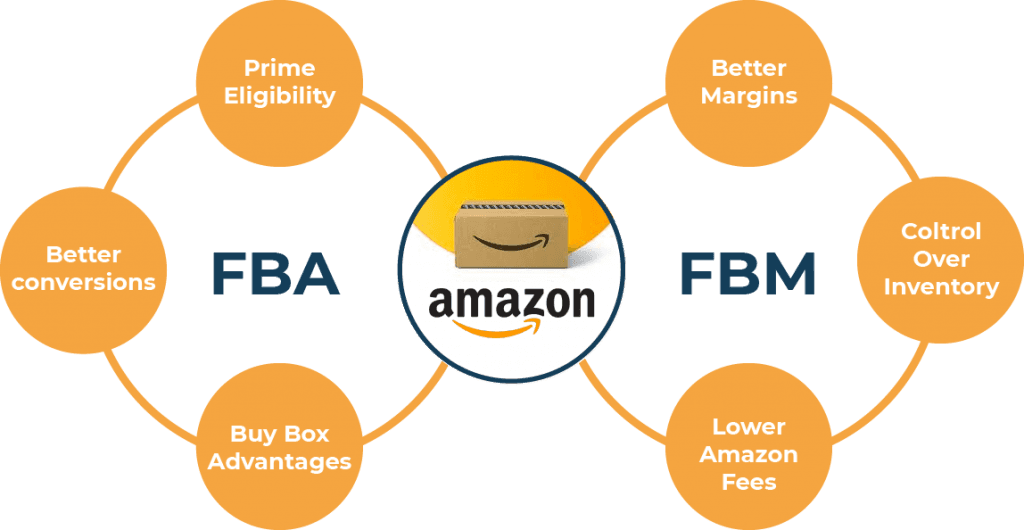
Odoo’s Amazon Connector effectively manages both Fulfilled by Amazon (FBA) and Fulfilled by Merchant (FBM) workflows, ensuring seamless order synchronization and processing. However, the way these two fulfillment methods interact with Odoo differs:
📦 For FBA Orders:
- Amazon fully handles fulfillment, meaning Odoo only synchronizes shipped and canceled orders.
- Shipping costs are calculated by Amazon and included in the order details, with no need for manual processing.
- Since Amazon manages inventory for FBA, Odoo synchronizes stock levels using a virtual location, allowing sellers to track FBA inventory movements within Odoo.
🚚 For FBM Orders:
- The seller is responsible for packing and shipping products, so Odoo automatically generates a delivery order for each FBM sale.
- Once the shipment is confirmed in Odoo, Amazon is notified, triggering payment processing.
- Stock levels are managed within Odoo’s Inventory app, ensuring available stock is accurately reflected on Amazon, preventing overselling.
- Additionally, any gift-wrapping charges and messages are added to the sales order and delivery note, ensuring all details are correctly processed.
🔹 While FBA provides a hands-off fulfillment experience, FBM gives sellers more control over inventory, shipping methods, and customer interactions.
🔹 The Amazon Connector ensures that both models are seamlessly integrated into Odoo, allowing businesses to efficiently manage Amazon orders regardless of their fulfillment method.
⚠ Important: The Amazon Connector only synchronizes sales order data.
- Reports such as monthly fees, dispute handling, and refund processing must be managed directly in Amazon Seller Central.
Amazon Order Management in Odoo
Odoo’s Amazon Connector ensures seamless order synchronization, fulfillment tracking, and financial registration by automatically fetching and updating orders based on Amazon’s latest status changes.
This reduces manual data entry, prevents discrepancies, and helps businesses efficiently manage both FBA (Fulfilled by Amazon) and FBM (Fulfilled by Merchant) orders.
1. Order Synchronization
Amazon orders are automatically fetched and updated in Odoo at regular intervals. Order status updates from either Amazon or Odoo trigger synchronization to keep records consistent.
- FBA Orders (Fulfilled by Amazon) – Only Shipped and Canceled orders are synchronized, as Amazon fully handles fulfillment.
- FBM Orders (Fulfilled by Merchant) – Unshipped, Shipped, and Canceled orders are synchronized, allowing Odoo to track order processing from start to finish.
For each synchronized order:
✔ A sales order is created in Odoo.
✔ A customer record is generated if not already in the system.
✔ If an order is canceled in Amazon, it is automatically canceled in Odoo.
⚠ Important: Odoo does not support selling the same product as both FBM and FBA, as stock synchronization is managed separately for each fulfillment method.
2. Force Synchronization of Orders
In cases where an order’s status remains unchanged, but synchronization is needed, follow these steps:
- Activate Developer Mode in Odoo.
- Navigate to Sales app ‣ Configuration ‣ Settings ‣ Connectors ‣ Amazon Sync ‣ Amazon Accounts.
- Under Orders Follow-up, modify the Last Order Sync date, selecting a date before the last status change.
- Click Save to trigger manual synchronization.
3. Managing Deliveries for FBM Orders
For FBM orders, Odoo automatically generates a picking (delivery order) in the Inventory app, along with the sales order and customer record.
- Sellers can choose to ship all products together or use backorders for partial shipments.
- Once the picking is confirmed in Odoo, Amazon is automatically notified, and Amazon updates the customer on shipment progress.
Tracking Reference Requirement
Amazon requires a tracking number for every shipment.
- If the carrier does not provide a tracking number automatically, it must be entered manually in Odoo.
- If the chosen carrier is not recognized by Odoo, create a custom carrier with the exact same name to prevent errors.
- For manual deliveries, create a Self Delivery carrier, but a tracking reference is still required.
4. Handling Synchronization Errors
If Amazon fails to process a shipment, Odoo:
✔ Sends an email notification listing all failed shipments along with Amazon’s error details.
✔ Flags the affected orders with a "Synchronization with Amazon failed" tag for easy identification.
Resolving Errors
Errors can typically be corrected directly in Amazon Seller Central or in Odoo. If the issue is fixed in Odoo:
- Click Retry Amazon Sync on the affected order.
- Odoo will attempt to resynchronize the shipment details.
5. Managing FBA Orders in Odoo
Since FBA orders are fulfilled directly by Amazon, Odoo automatically records stock movements when an FBA order is synchronized.
- Each FBA sale creates a stock move in Odoo’s Inventory app, ensuring inventory records remain accurate.
- Inventory managers can track stock movements by navigating to Inventory ‣ Reporting ‣ Moves History.
- When sending new inventory to Amazon, sellers must manually create a picking (delivery order) in Odoo to transfer stock from their warehouse to Amazon’s storage facility.
Configuring Amazon Stock Locations
By default, all Amazon accounts under the same company share a single stock location in Odoo. However, stock tracking can be customized per marketplace:
- Remove the marketplace from the list of synchronized marketplaces.
- Create a separate Amazon account registration for the marketplace to be tracked independently.
- Assign a different stock location to the new registration.
This setup allows businesses to monitor stock levels for different marketplaces independently.
6. Invoicing and Payment Registration
Issuing Invoices
Amazon does not provide customer email addresses, meaning invoices cannot be sent directly from Odoo. Instead:
✔ Invoices must be manually uploaded to Amazon Seller Central.
✔ For B2B clients, VAT numbers must be retrieved from Amazon before creating invoices in Odoo.
Registering Payments
Since Amazon acts as a payment intermediary, sellers should properly configure payment reconciliation in Odoo:
- Create a dedicated Bank Journal (e.g., Amazon Payments) with an Amazon intermediary account.
- Since Amazon pays sellers in monthly batches, all payments should be registered together.
- Use the Amazon Payments Journal, selecting Batch Deposit as the payment method.
- Select all payments, then click Actions ‣ Create Batch Payment ‣ Validate.
- The same process applies for vendor bills related to Amazon commissions.
- When Amazon’s payout is received, reconcile the bank statement by crediting the Amazon intermediary account.
7. Tracking Amazon Sales Performance in Odoo
To help sellers monitor Amazon sales trends and performance, Odoo assigns a Sales Team to each Amazon account under the Order Follow-up section.
- By default, all Amazon accounts within the same company share a single Sales Team for tracking purposes.
- If required, sellers can assign different Sales Teams per Amazon account, allowing them to track performance metrics separately for each marketplace.
This feature provides valuable insights into order volume, revenue trends, and fulfillment efficiency—directly within Odoo.
How Odoo’s Amazon Connector Transforms Your Business
Selling on Amazon is highly competitive, and success depends on efficiency, automation, and data-driven decision-making. Odoo’s Amazon Connector equips businesses with the right tools to stay ahead by automating tedious tasks, centralizing sales data, and optimizing inventory management.
By eliminating manual effort, improving order accuracy, and streamlining financial registration, Odoo allows sellers to focus on growing their brand instead of getting lost in operational complexities. Whether you use FBA or FBM, this integration ensures a smooth synchronization of orders, inventory, and financials, minimizing errors and improving overall business performance.
If you're an Amazon seller looking to scale, Odoo could be the missing link in your eCommerce strategy—helping you boost efficiency, cut costs, and maximize profitability in a highly competitive marketplace.
🚀 Unlock the full potential of your Amazon sales with Odoo today and take your eCommerce operations to the next level!
👉 Need more details? Contact us here to learn how Odoo can help streamline your Amazon operations.