How to Set Up a Quotation Template & a Quote Calculator in Odoo 19
Companies that offer highly customizable products or services often face challenges when preparing accurate quotations quickly. This is especially common in businesses dealing with made-to-order solutions, where pricing depends on multiple variables.
For example, industries such as custom furniture manufacturing or textile production must consider measurements, raw material costs, and production time for every order. Similarly, service providers—like maintenance or cleaning companies—need to calculate labor hours, travel expenses, and equipment usage for each service. In some cases, businesses take on highly customized projects—such as designing and installing tailored green spaces for urban environments—which require careful planning around materials, site conditions, and ongoing maintenance needs.
Creating quotes manually in these scenarios can be inefficient. Many businesses rely on complex spreadsheets to manage multiple variables, only to transfer the data into quotations—a process that is both time-consuming and prone to errors.
Odoo streamlines the entire sales workflow by providing a built-in quote calculator and quotation templates that automatically update pricing. This allows businesses to generate accurate quotations quickly and efficiently without relying on external spreadsheets or additional tools. Users can calculate labour costs, include extra services, and evaluate profit margins all within a single system, while managing the full sales cycle across integrated apps such as Sales, Spreadsheets, Accounting, and Inventory.
Key Benefits of Odoo’s Quote Calculator:
- Fully integrated with Odoo Spreadsheets: All calculations happen within the platform, avoiding manual data transfers;
- Reusable and editable calculators: Easily revisit and adjust previous configurations for new quotes;
- Complete cost visibility: Track materials, labour, and logistics in one place;
- Improved accuracy: Automated formulas reduce human error.
Additionally, the quote calculator integrates with financial data, enabling businesses to analyze profitability at both customer and project levels, supporting more informed decision-making.
Quotation Templates/ Step-by-Step: Setting Up Your Quote Calculator Let’s walk through the setup process using the example of a company that provides outdoor solutions, such as artificial grass installation and landscaping services.
1. Create a Quotation Template
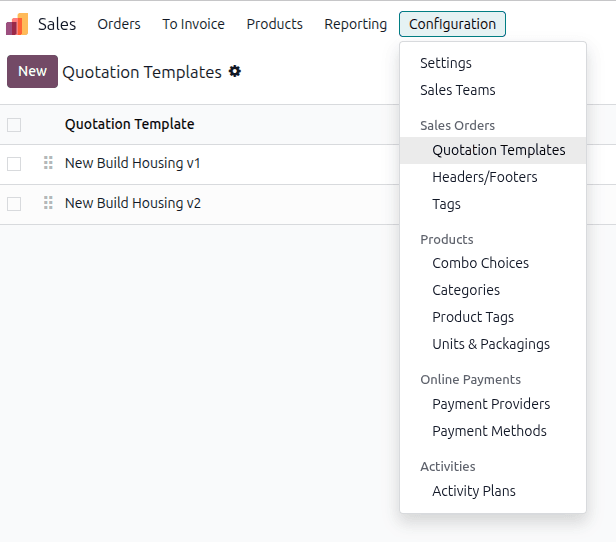
Start by navigating to Sales → Configuration → Quotation Templates. Here, you will see a list of all existing quotation templates. To add a new template, click the New button.
In the Lines tab of the quotation template, we can add products and arrange them into different sections. The Terms & Conditions tab lets businesses set default contractual terms, while the Quote Builder tab provides the option to upload custom headers and footers to improve the quotation’s overall appearance.
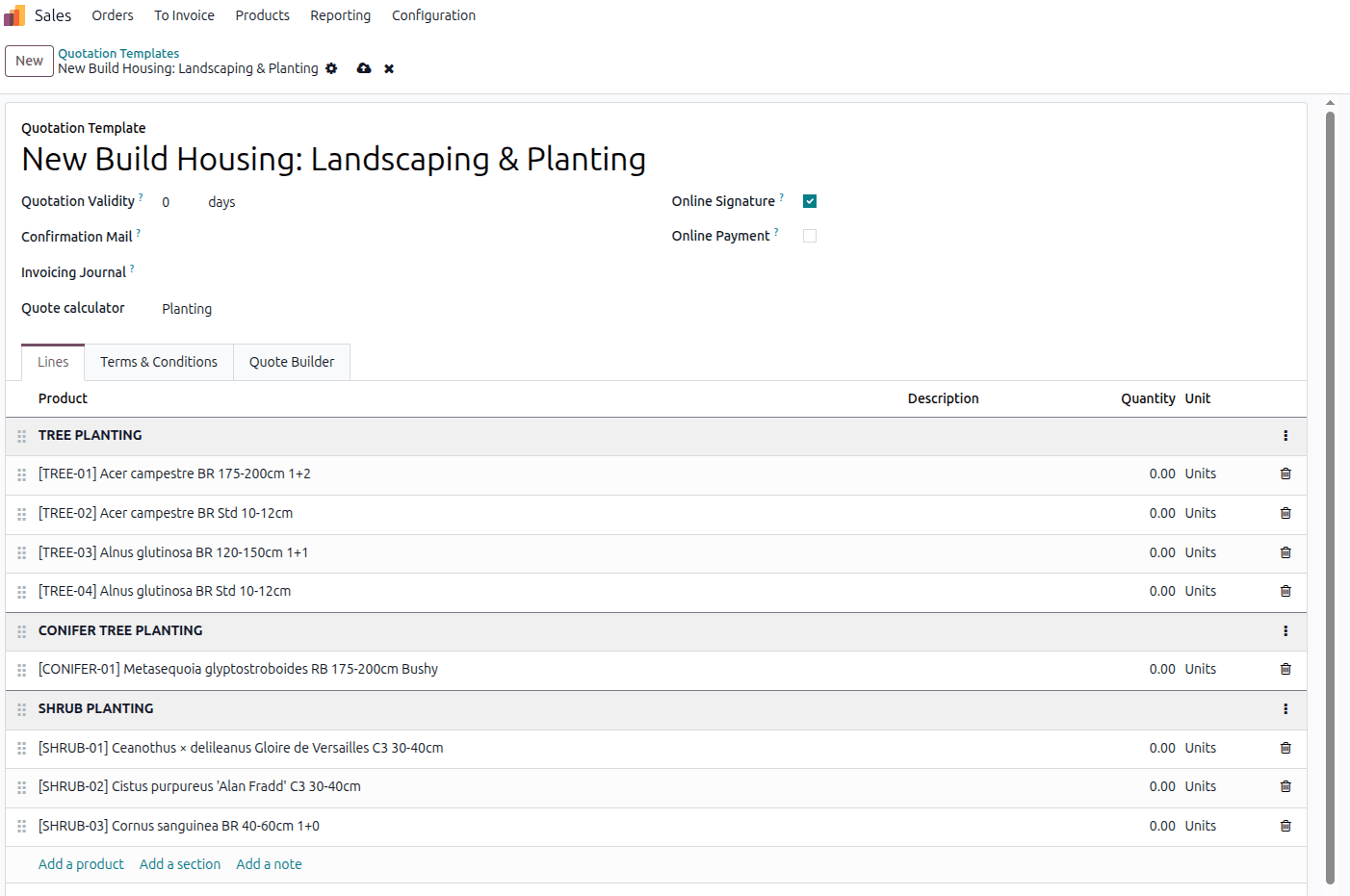
In this example, “New Build Housing: Landscaping & Planting” the quotation template acts as a pre-structured "skeleton" organizing the products into clear categories like "Tree Planting" or "Shrub Planting."
Adding products with zero quantity lets you pre-build structured quotes with optional or grouped items without affecting totals. Salespeople can then quickly adjust quantities for what the customer actually wants.
2. Define Cost Calculations
Next, open the quote calculator. In the first tab, you’ll find a complete list of your products ready to be used in your calculations.
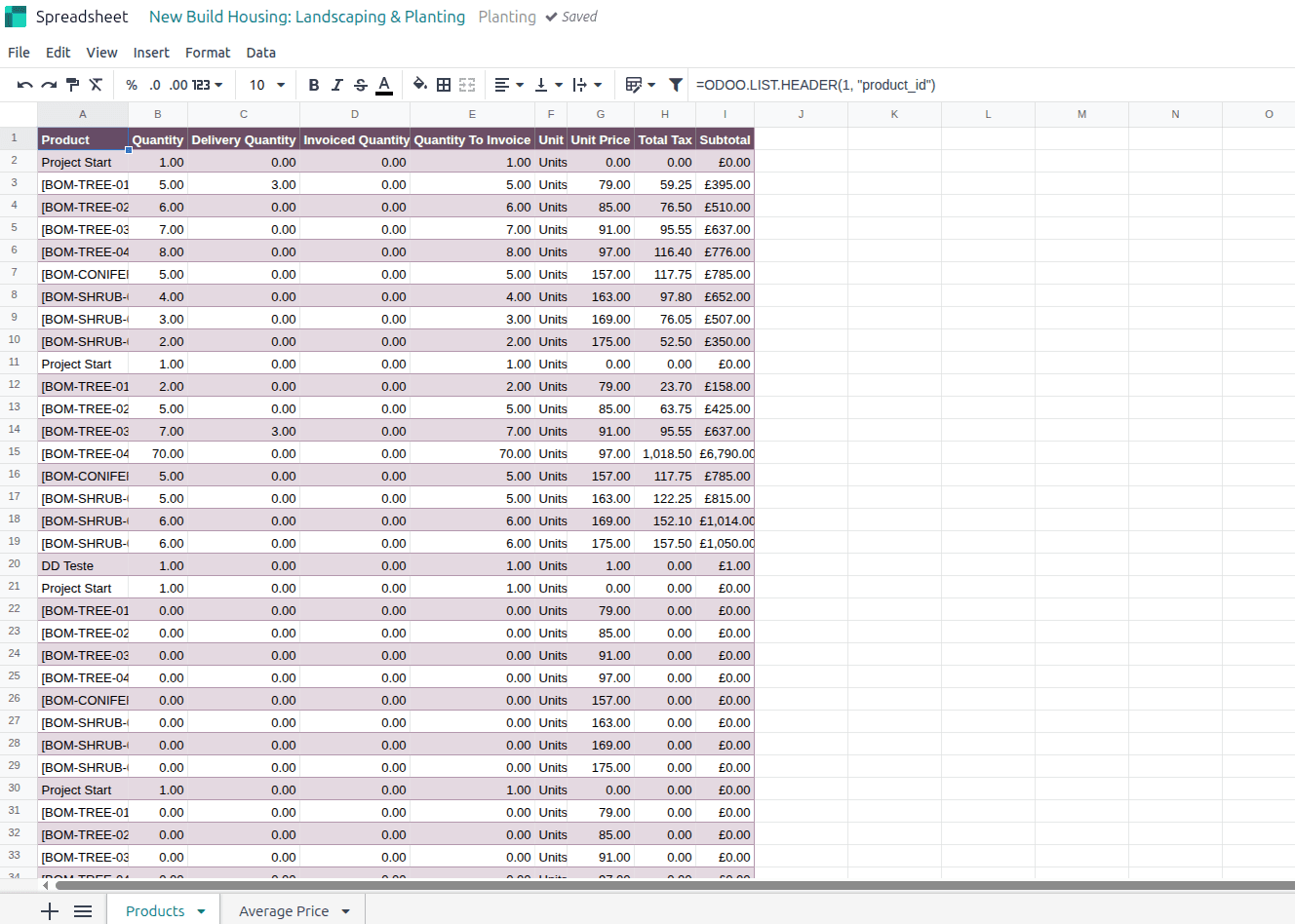
You can then create a Calculation tab to add all your different calculation parameters (e.g. components, supplier pricing, measures, labour cost, etc.). You can adapt it to your specific needs or use one of Odoo’s pre-made calculator templates.
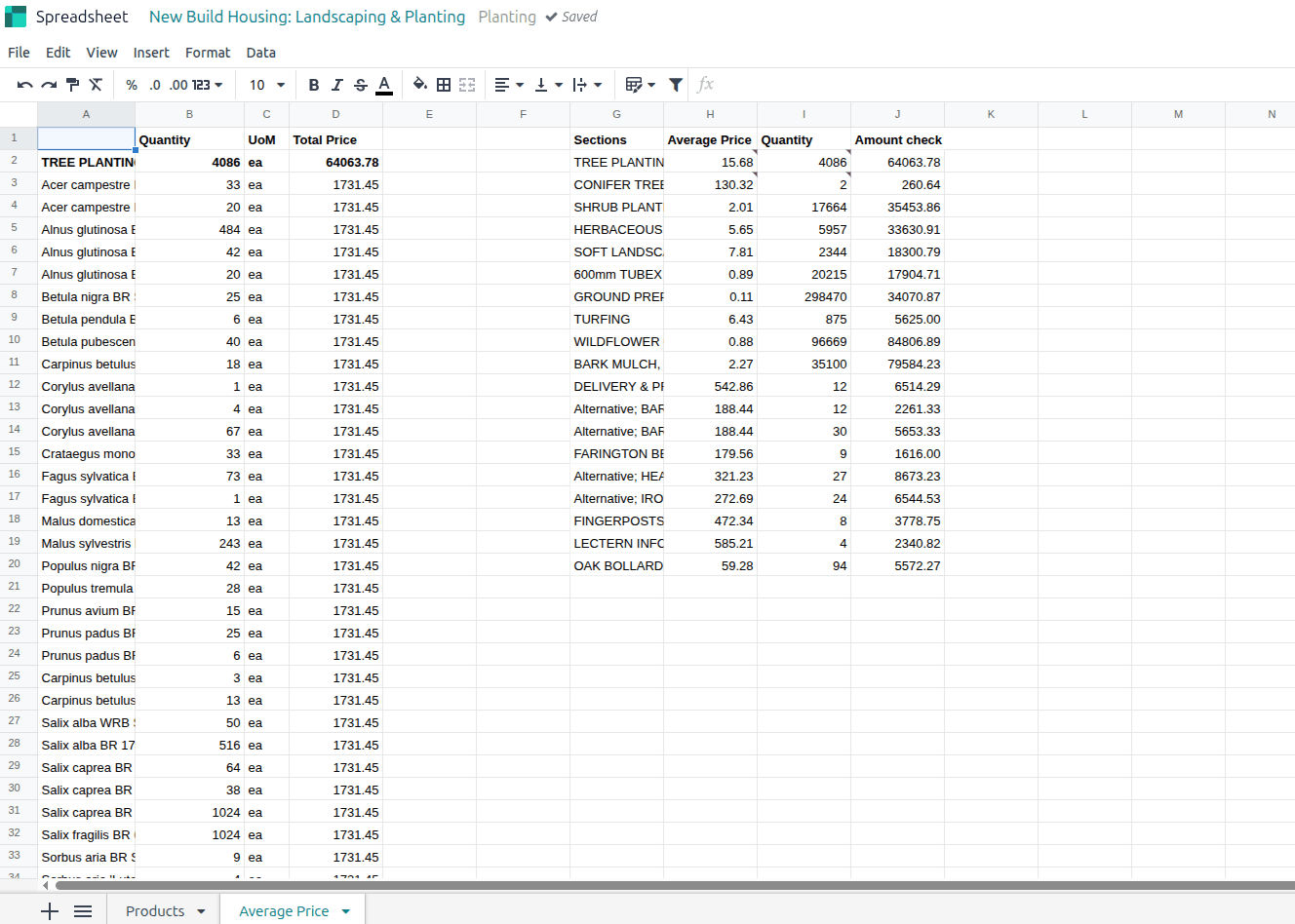
In this example, the Average Price tab acts as a calculation engine that consolidates each section into a single, reliable output. Using structured formulas, it aggregates all cost inputs and returns both a calculated average unit price ($15.68) and a corresponding section total ($64,063.78)—ensuring every high-volume quotation is consistently priced and fully validated before it reaches the customer.
3. Link Calculations to Sales Prices
Once your calculations are complete, you can sync the results directly to the quotation by connecting them to the Sales Order lines. To do this, right-click the relevant cell (e.g., Updated Unit Price, Average Price (H2), or Quantity (I2)) and select Edit Sync. Then ensure the Record to sync (position) matches the correct Sales Order line number in the quotation (e.g., line 2), and choose the appropriate Field to sync such as Unit Price or Quantity. The Cell to sync is automatically detected and does not need adjustment.
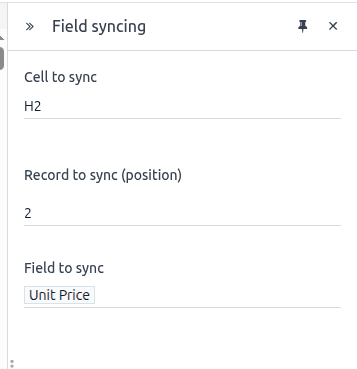
This setup allows your calculated values to flow directly into the quotation, keeping pricing accurate and fully aligned with your sales order structure.
4. Use the Calculator in Real Scenarios
Once your parameters have been set up, you can create your quotation based on the template you just set up. Automatically, any sections, notes and products set up on the template will be displayed.
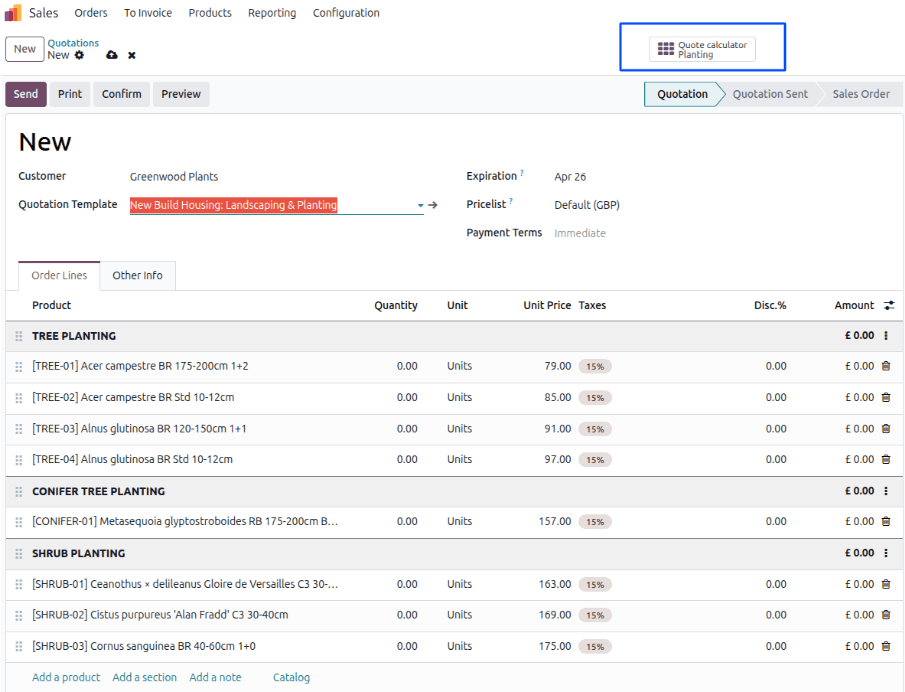
A quote calculator smart button will also appear. Click on the smart button to launch your newly created calculator.
You will be immediately redirected to your Odoo quote calculator spreadsheet for this template, where you can adjust all variants based on your customer’s requirements.
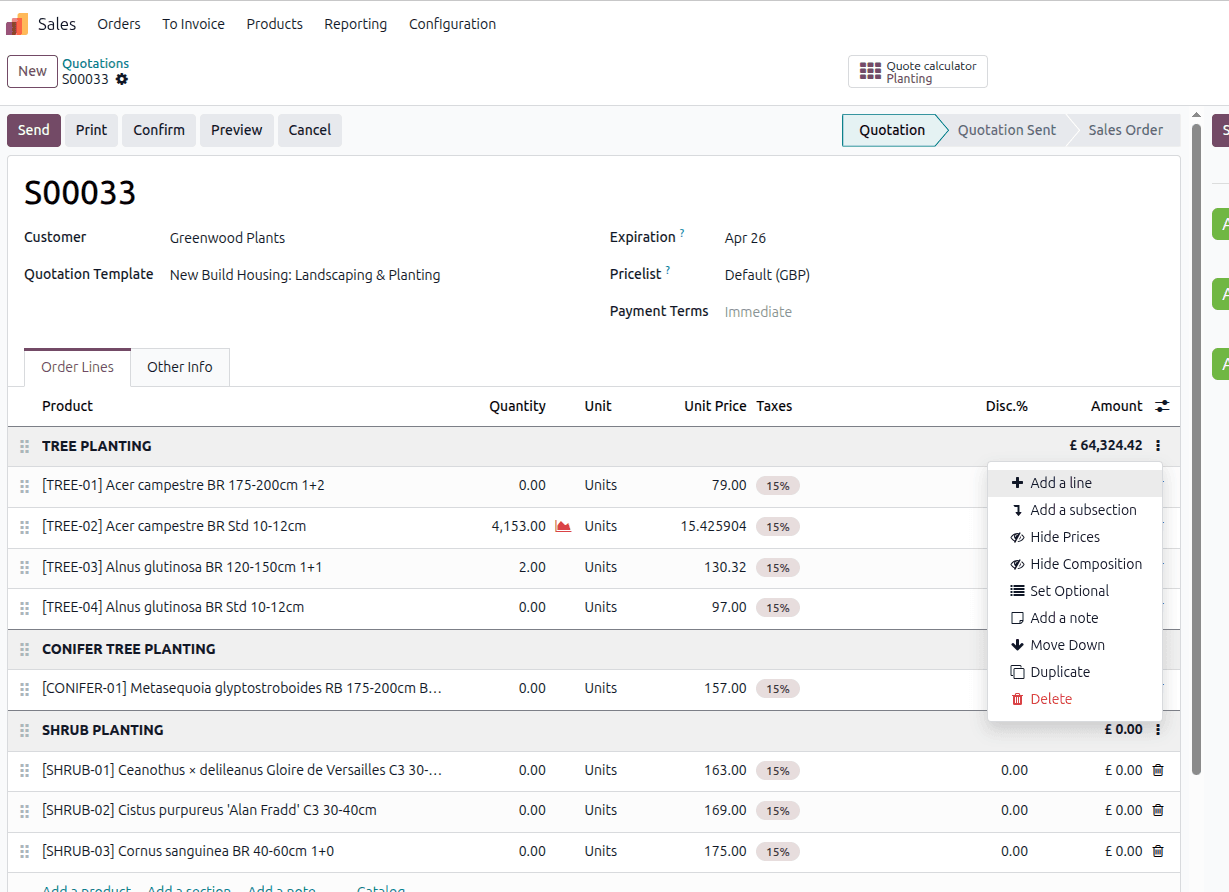
In this example, by updating the quantities for the second product, the Amount check is automatically updated. Once you save, this data is immediately reflected in the Unit Price and Quantity of the corresponding line in your Odoo Sales Order.
Conclusion
Setting up a quote calculator in Odoo 19 transforms how businesses handle complex pricing. Instead of relying on manual spreadsheets and repetitive data entry, companies can automate calculations, reduce errors, and generate accurate quotes in seconds.
This not only improves operational efficiency but also enhances customer experience by delivering faster, more reliable quotations. Whether you’re selling custom products or offering tailored services, Odoo’s integrated quote calculator provides a scalable and dependable solution for modern sales processes.